


Essay
Fabric Pipeline Deployment Strategy with Parameters
1,271 words · 9 min read
When a data pipeline moves from development to production, the pipeline logic should usually remain the same while its configuration changes. Examples include notebook parameters, database names, workspace identifiers, and thresholds. Microsoft Fabric variable libraries provide a convenient way to keep these values in one place and switch between environments without editing every pipeline activity.
This post demonstrates how to create a variable library for a Fabric pipeline and how to use value sets for environment-specific configuration. The example uses three parameters:
LowerLimit, an integer with a default value of10;UpperLimit, an integer with a default value of100; andMeanValue, a number with a default value of17.45.
The values are only examples. In a real project, you could replace them with connection settings, storage paths, workspace names, or other values that differ between environments.
The pipeline and its default parameters
The starting point is a pipeline containing a notebook activity. The activity is configured with the default parameter values shown below.
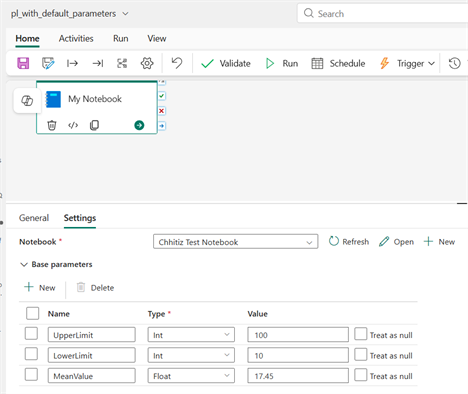
The screenshot shows the notebook activity selected in the pipeline. In its Settings pane, the LowerLimit, UpperLimit, and MeanValue base parameters are set to 10, 100, and 17.45. Keeping these values visible in the example makes it easier to compare the pipeline’s original configuration with the values supplied by a different value set later.
Hard-coding these values in several activities can become difficult to maintain. A variable library allows the values to be managed centrally and referenced by the pipeline instead.
Create a variable library
Open the Fabric workspace and select New item. The Variable library item is available under the workspace items.
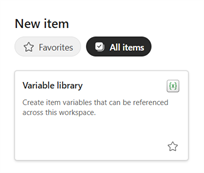
The Variable library description explains its purpose: it stores item variables that can be referenced across the workspace. This is useful when multiple pipelines or other Fabric items need the same configuration.
Choose Variable library, enter a meaningful name, and select the workspace location. In this example, the library is named vl_my_values.
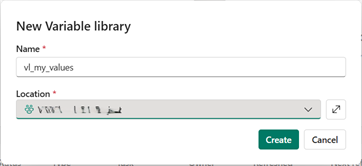
Use a name that identifies the library’s purpose rather than a temporary implementation detail. A clear name makes it easier for other developers to find the correct configuration when a workspace contains many items.
After the library is created, it does not contain any variables yet.
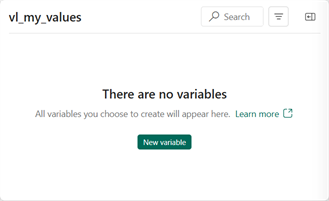
Select New variable to add the first variable. Repeat this step until the library contains every value that should be centrally managed.
Add the default variables
Create the three variables with the names and types listed earlier. The variable library should use types that match the parameters expected by the notebook or pipeline activity.
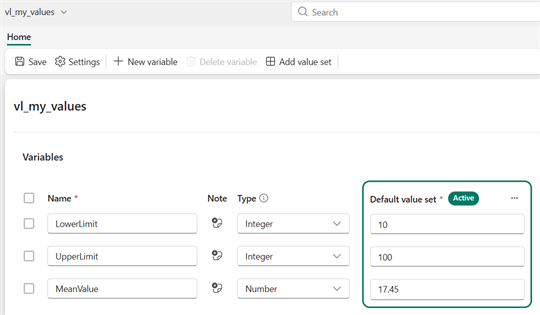
The default value set contains LowerLimit, UpperLimit, and MeanValue. The first two are integers, while MeanValue is a number. The values in this set are 10, 100, and 17.45 respectively.
Choosing the correct type matters. For example, storing a numeric limit as text can lead to conversion errors or unexpected comparisons when the value is passed to a notebook. Keep the variable names consistent with the parameter names used by the pipeline so that the mapping is easy to understand.
Use library variables in the pipeline
Creating the variables is only half of the setup. The next step is to add the variable library to the pipeline and use those variables as the values for the notebook parameters.
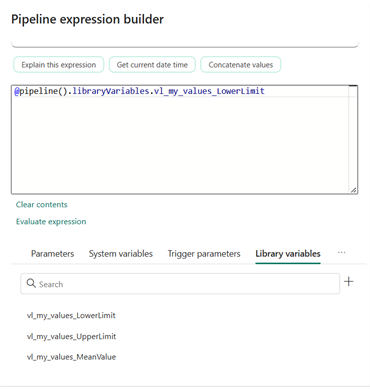
Open the pipeline’s dynamic content or expression builder and switch to the Library variables tab. Select the + button to add a library variable to the pipeline.
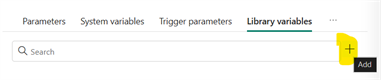
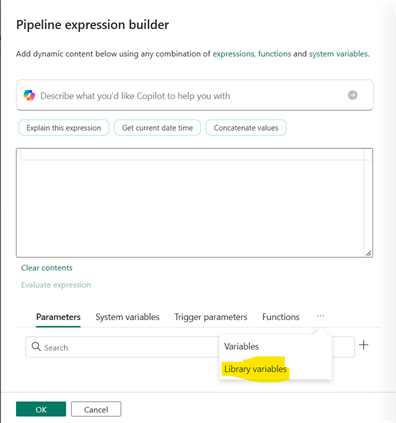
The expression builder initially opens on the Parameters tab. Open the tab menu and choose Library variables so that the variables from the workspace library become available.
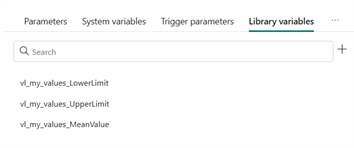
The library variables are now listed by their fully qualified names. In this example, the entries are vl_my_values_LowerLimit, vl_my_values_UpperLimit, and vl_my_values_MeanValue.
To replace a hard-coded parameter, select its value field and choose Add dynamic content. In the example below, the LowerLimit value is selected.
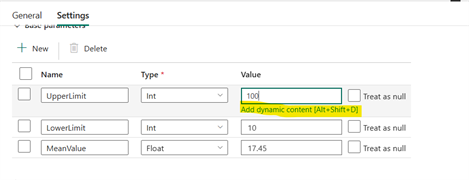
In the expression builder, choose Library variables and select the variable that matches the parameter. Selecting vl_my_values_LowerLimit, for example, inserts a reference to the active value from that variable library.
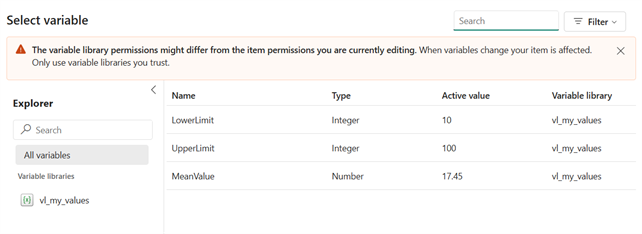
Fabric inserts an expression similar to the following:
@pipeline().libraryVariables.vl_my_values_LowerLimitThe pipeline does not store the literal number in the parameter field anymore. Instead, it resolves the active value from the variable library when the pipeline runs.
Repeat the same process for UpperLimit and MeanValue. When all three parameters reference library variables, the notebook activity uses the active value set without requiring changes to the pipeline definition.
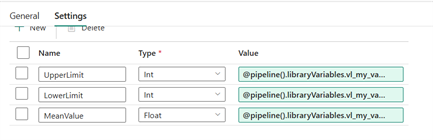
This distinction is important: changing the active value set changes the values supplied to the pipeline, while the pipeline and notebook configuration remain unchanged. Always validate the resolved values in a non-production run before switching the active set for a production workload.
Add an alternative value set
The default value set is useful for development, but production often needs different limits or configuration values. Select Add value set to create another group of values.
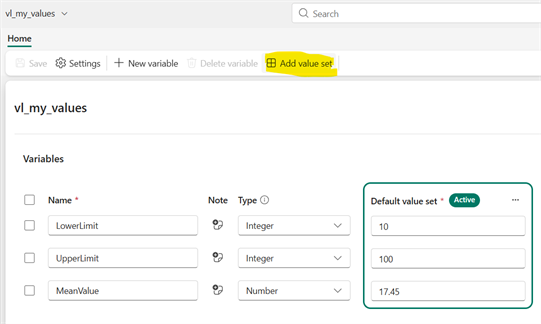
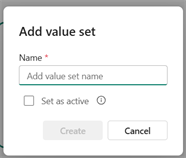
Enter a name for the new set and create it. In this example, the alternative set is called PROD.
The new set contains the same variables as the default set, but each variable can have a different value. Here, the production values are 5, 120, and 18.45.
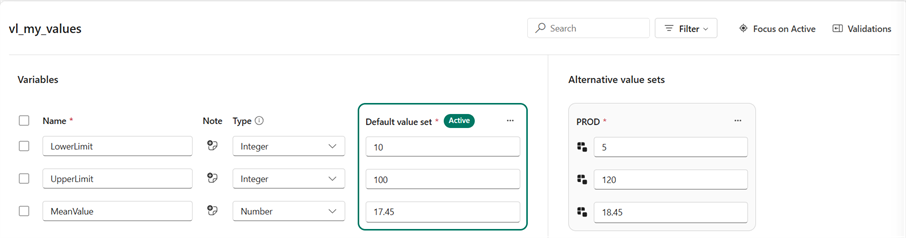
The side-by-side view makes the environment-specific configuration explicit: the variable names and types stay the same, while the values change. This is the main benefit of value sets. Pipeline logic does not need to be duplicated just because an environment has different configuration.
Select the active value set
Only one value set is active at a time. Open the menu for the alternative set and choose Set as active when the pipeline should use those values.
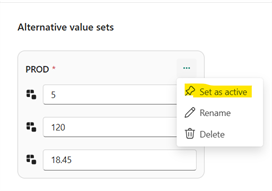
The active set is the set Fabric uses when the variables are resolved. Before running or deploying a pipeline, verify that the intended set is active. A value set named PROD is not automatically safe merely because of its name; the important detail is whether it is currently active.
Fabric displays an impact-awareness message before changing variable values.
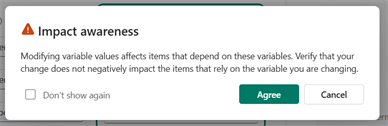
This warning is a reminder that changing a variable library can affect every item that depends on it. Review the consuming pipelines, notebooks, and other items before confirming the change. If different environments must be used independently, consider managing the activation step as part of the deployment process and documenting who is allowed to change it.
Why this approach helps
Using a variable library with value sets provides a few practical advantages:
- Centralized configuration: values are maintained in one place instead of being repeated across activities.
- Environment separation: development and production values can share the same variable names and types while using different values.
- Safer deployments: the pipeline definition can remain stable while deployment-specific configuration is selected separately.
- Better visibility: the impact warning makes the scope of a configuration change clear before it is applied.
There is still an operational responsibility: activating a value set is a shared change. Establish a naming convention, keep the values documented, and verify the active set before running a production pipeline.
Summary
Variable libraries are a useful way to separate Fabric pipeline logic from environment-specific values. In this example, we created vl_my_values, defined a default set of numeric variables, added a PROD value set, and selected the appropriate set as active. The same pattern can be applied to paths, identifiers, connection-related settings, and other parameters that vary between environments.
Reference
- Variable library overview — Microsoft Learn